One of the core and important task of Salesforce CRM is setting up right users for the organizations. Admins spends lots of time setting up right accesses to newly onboarded users or changing/adjusting accesses to existing users by changing roles, profiles or permission sets. The User Access policy in Salesforce is the smartest way to automate these tasks for admins to maximize user management Jobs.
What is User Access policy in Salesforce ?
User Access Policies provide a new and scalable solution to automate User Access Assignments which ensures consistency and reducing admins’ time on manual processes of managing users’ accesses.
When creating/updating users, User Access Policy allow Salesforce Admins to define rules that automatically assign:
- Permission Sets
- Permission Set Groups
- Permission Set License
- Package Licenses
- Public Groups
- Queues
When a user meets defined conditions in the policy (like profile, role, department), These policies in Salesforce automatically can add/remove user accesses.
What Business Problem it solve ?
Manual user management costs time and money for businesses because admins spends lots of time on manually assigning accesses to users which tends to cause error. Using user access policies automate this task and provides following benefits :
- Automation : Reduces manual efforts in assigning/removing permissions
- Consistency : Ensures every user gets the right access based on criteria
- Security : Minimize overexposed accesses due to forgotten revocations.
- Scalability : Can handle tasks for large orgs with frequent role/department changes.
- Audit : Keep records of each assigned/removed accesses for transparency.
How User Access Policies Works ?
First of all, User Access Policies are not enabled default. Go to Set up -> User Management Settings -> find User access policies and enable it.
Once Enabled, now you can search it in set up and click on New User Access Policy.
You need to provide Policy Name, its API name, Order Number and Description. Order Number is useful if you have multiple policies and If many of them have overlapping user criteria.

After this, You can click on Edit Criteria button and then you can define User criteria to make user eligible for this policy and define what actions to take when user are created/updated, e.g. remove or add access to certain permission set groups.
One great feature of this User Access Policy is that you have options to apply this policy to existing users (who matches user criteria) manually or automate it for future whenever user is created/updated matching user criteria.
Step-by-Step : How to configure User Access Policies
Let’s implement User access policies step by step with Business case scenario.
Business Case : Scenario 1
The SalesforceFox company wants to automate user provisioning jobs in their salesforce CRM. They want to automate one task that their admins perform manually now.
Whenever new employee joins the company with Role of ‘Sales Associate’, their user record in CRM should automatically be assigned Permission Set and Public Group called ‘Sales Associate Basic Permissions’ and ‘SalesforceFox Sales Team’ respectively.
Now, Let’s go to user Access policies and click on new policy and provide names and order number as 1.
Once new user access policy created, click on Edit Details on top right.
Define User Criteria :
As shown above in requirement, we want to apply this user access polices when user joins company who has role of ‘Sales Associate’ so after clicking on edit criteria, add following details

Define Actions :
As per our requirements, if user criteria matches, for this user, we need to grant access to Permission Set called ‘Sales Associate Basic Permissions’ and Public Group called ‘SalesforceFox Sales Team’ as shown below and click Save.

Activate Policy :
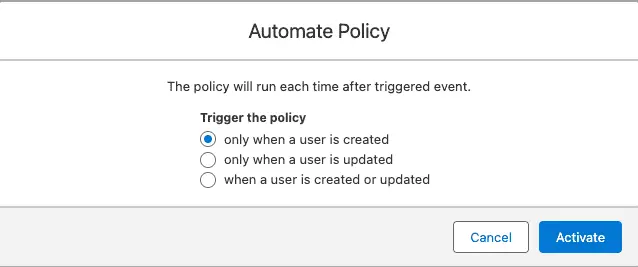
Once saved, Make sure to click on Automate Policy as shown below, in order to automatically apply this user access policy.

Now here you will have option to select when to apply this policy either user is created or updated or Both. In our scenario this for new user joining the company so select only when user is created and then click Activate.
You can also optionally click on Apply policy which is manually apply this policy as one-time operation to all existing users matching criteria as shown below.

Business Case : Scenario 2
At SalesforceFox company, many employees do internal transfers from customer services department to Operations management department. In this case, Admin has to spend so much time removing old permission sets of customer service and add new one for operations management.
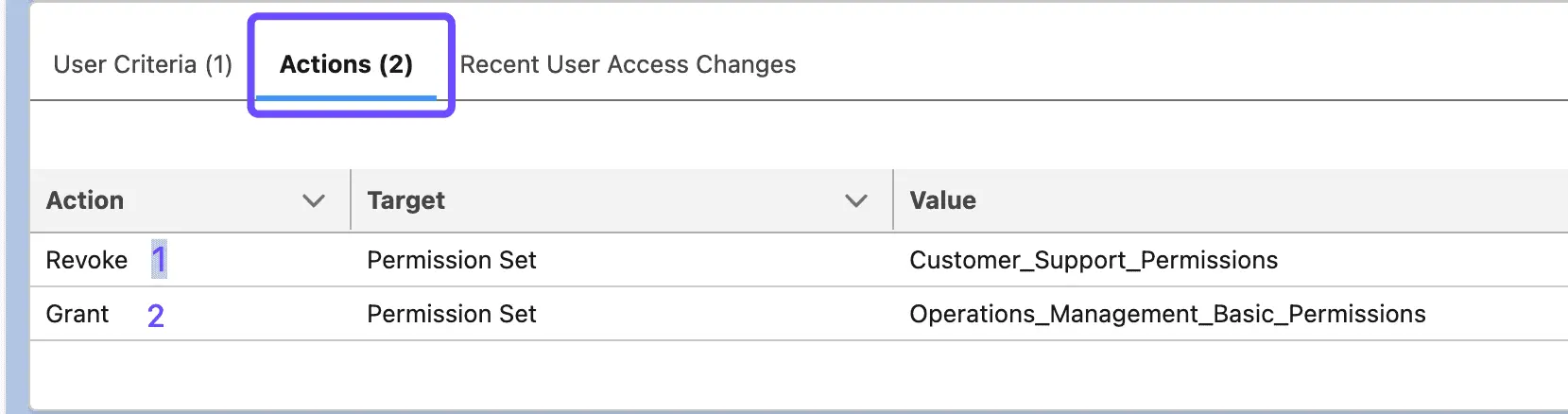
We want to automate this by creating new user access policy that whenever admin updates user’s Department to ‘Operations Management’. User automatically should get removed from permission set ‘Customer Support Permissions’ (If they have) and get assigned to ‘Operations Management Basic Permissions’.
Try it yourself :
From above requirement, think about what User criteria and what actions you will define when creating this user access policies.
Solutions :
Check out following images if you have thoughts of same solution.

Best Practices for using User Access Policies
- Always test policies thoroughly in a sandbox environment before deploying to production.
- Make Name policies clearly to indicate their purpose
- Don’t try to handle multiple unrelated access scenarios in a single policy
- If multiple policies matches overlaps some user criteria, make sure to verify their order number.
- Make sure to review active policies on regular intervals
Considerations
If you working in orgs with tons of users, User Access Policies are great to way to manage user provisioning jobs and can save lots of time for admins. However, it is necessary take into account below consideration before using it.
- An action performed by a user access policy can’t trigger another user access policy.
- You can have up to 200 active policies at a time.
- Consider the cumulative impact when users meet multiple policy criteria
- Make sure to go through Salesforce’s full list of considerations before creating any user access policies.