

Introduction
By leveraging this new Repeater component in Screen flow, you are enabling users to enter multiple instances of data at runtime in the same screen, which was a big hurdle before the introduction of Repeater component. Repeater component will store all the entered fields via screen flow into a Collection and this collection can be used in your flow for further processing or to create records.
Creating Screen Flow using Repeater Component with Use Case
Let’s Explore this with a real-time scenario: Create multiple contacts from screen flow on the account record page.
Step 1 :
From Set up, go to Flow> New Flow > Start From Scratch and then select Screen Flow and click on Create for new flow builder. To create contacts via screen flow, first add a screen component & as shown below add the Repeater component to the screen and input fields of Contact into repeater component.

Step 2:
The flow will have a default Collection created for all fields entered through the repeater component Screen, in our case multiple contact details (First Name & Last Name) that you will enter, would be stored in the default Collection called {repeater_contacts.AllItems }, whereas repeater_contacts is the API Name of Repeater Component
Step 3:
This repeater collection can be used for any further processing in the flow. In our case, we will use the Loop element to go over this Collection and do the assignment of each item of the Collections to create a contact record.

Step 4:
Now, we need two new variables here, first is the temporary contact record variable ( singleContactRec ) in which field values from each item of repeater collection are assigned and Second is Contact Record Collection ( contactRecordCollection ) which will store all contacts from the first variable one by one.
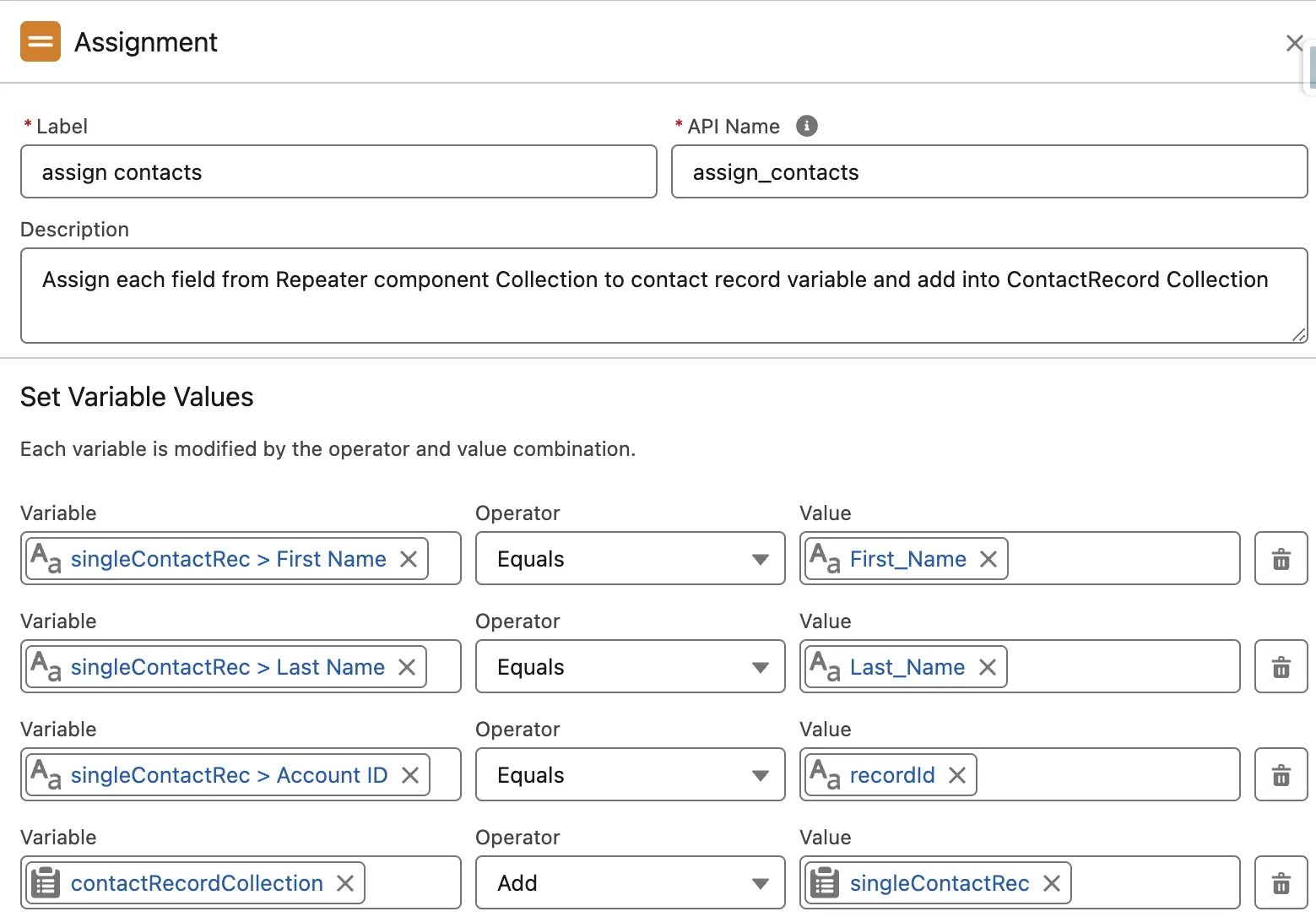
In the above image, you may have noticed that we have assigned ‘recordId’ to AccountId of the contact variable. This ‘recordId’ is a text variable you need to create in your flow because we will be launching this flow from the account record page action & this default variable recordId will have a value from the id of the record page from where the flow is being launched.
Step 5:
After the assignment, contactRecordCollection should have all contacts to insert, so now use Create Record Element in flow & make sure to select the option of multiple records to create & select this collection.


Voila! You successfully created the screen flow which will create multiple contacts from an account. Create a lightning action which calls this flow and add it into the account record page.
Take a look below at How the entire flow will look,

Screen Flow in Action:
Conclusion/Consideration:
This component is very useful whenever you have scenario when there is a need of entering multiple data or forms in Screen Flow. Before you start using it, Take into account the Consideration provided on Salesforce Help




Great article! I really appreciate the clear and detailed insights you’ve provided on this topic. It’s always refreshing to read content that breaks things down so well, making it easy for readers to grasp even complex ideas. I also found the practical tips you’ve shared to be very helpful. Looking forward to more informative posts like this! Keep up the good work!
Thank you very much, It really means a lot to me.